
Welcome to this detailed guide on copying trades between MetaTrader 4 and MetaTrader 5 platforms. While this might seem straightforward at first glance, there are several nuances and setup requirements that traders frequently ask about. This guide will walk you through everything you need to know to successfully copy trades across these platforms using Local Trade Copier software.
Introduction
Copying trades from MetaTrader 4 to MetaTrader 5 is simpler than most traders typically expect. The process is essentially the same as copying trades between two MT4 platforms or two MT5 platforms—the core mechanics remain identical. However, many traders encounter questions about this specific setup, particularly when dealing with symbol name mismatches and configuration details.
This guide covers four key topics:
- One-to-Many Copycat Setup – Understanding how to copy from one master account to multiple client accounts simultaneously
- Linking MetaTrader Accounts – Properly connecting all platforms using Local Trade Copier software
- Symbol Mapping – Handling situations where symbol names don’t match between platforms
- Testing Your Setup – Verifying everything works correctly without exposing real money to risk
One-to-Many Copycat Setup Concept
The “one-to-many copycat setup” is a simple concept: you have one account serves as the master, and trades executed on this master account are instantly duplicated across many other client accounts. This setup allows you to trade Forex and CFDs on one account and have those identical trades materialize in multiple other accounts immediately.
How It Works
Here’s the fundamental structure:
- Master Account: One MetaTrader platform (either MT4 or MT5) where you place your trades
- Client Accounts: Multiple MetaTrader platforms that automatically replicate every trading action from the master
- Same Computer Requirement: All platforms need to operate on the same computer, with each logged into a separate account
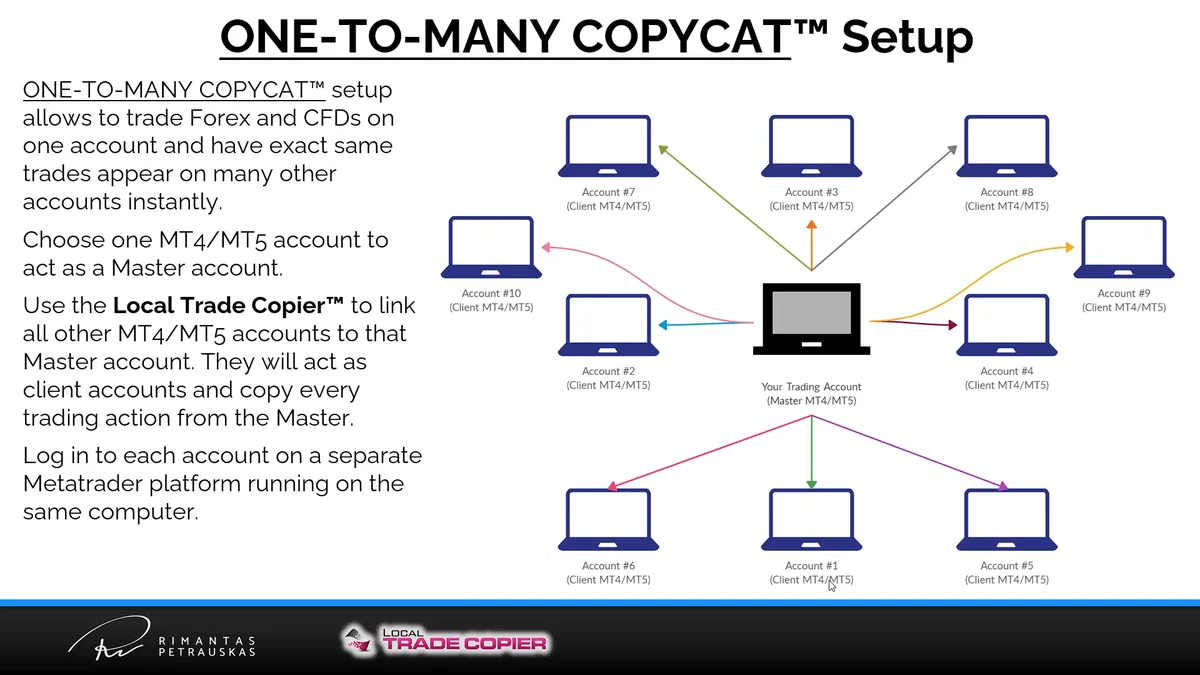
An important clarification: each icon in typical setup diagrams shows a separate MetaTrader platform instance running on the same physical computer, not different computers. As an example, if you’re copying from MT4 to MT5, visualize the central platform is your MT4 account, and the surrounding platforms are MT5 accounts on the same machine.
Platform and Account Requirements
Each account requires login on a separate MetaTrader platform running on the same computer. For an 11-platform setup, you’ll need login credentials for 11 distinct MetaTrader accounts. Multiple accounts cannot be active on the same platform simultaneously—only one account can be logged in per platform at any moment. This requirement explains why separate platform installations are necessary for each account you want to include in your trade copying setup.
Tips:
- Determine your account structure beforehand—identify which account serves as your master
- Each platform needs its own installation folder on your computer
- Use descriptive names for your platform installations to prevent confusion
Local Trade Copier Package and Installation
Following your software purchase or trial license registration, you’ll download the Local Trade Copier package. This package includes multiple folders and files that may appear confusing initially, but the structure becomes clear with basic understanding.
Package Contents
Within the downloaded package, you’ll locate:
- Documentation Folder: Holds instruction manuals, tutorials, and reference materials
- MQL4 and MQL5 Folders: Intended for manual installation (detailed in separate installation videos)
- Auto Installers: Four separate installation files that simplify the process considerably
Understanding Platform Versions
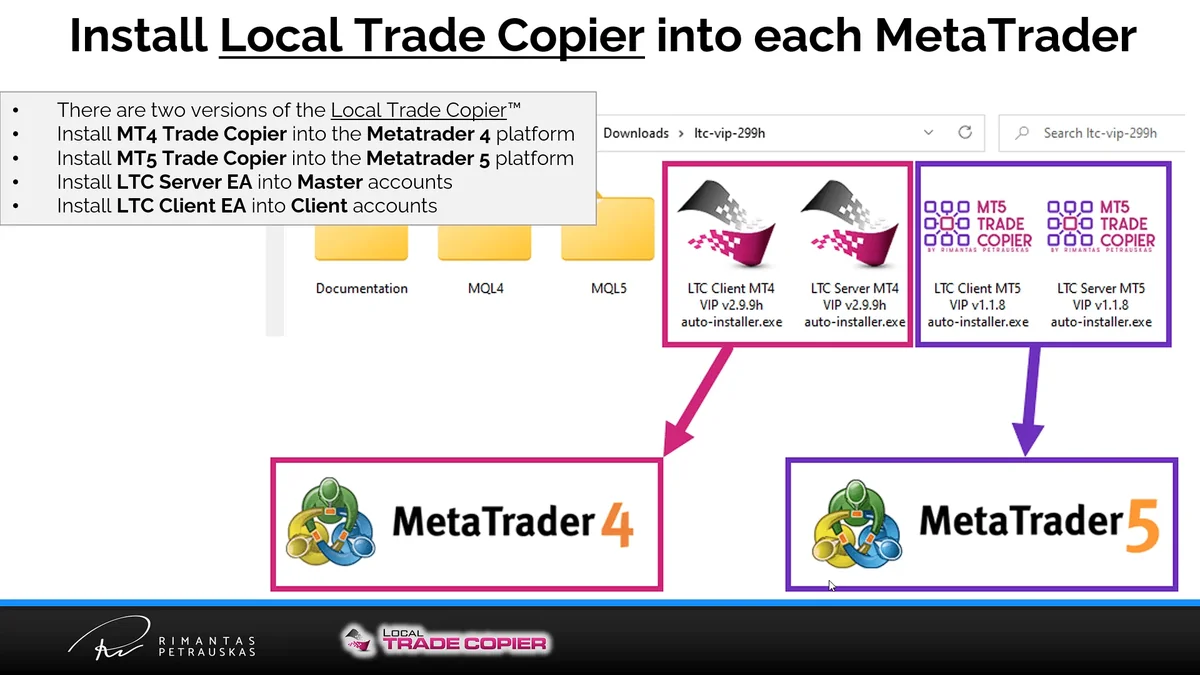
Here’s an essential point that creates confusion for many users: Local Trade Copier exists in two versions—one designed for MetaTrader 4 and another for MetaTrader 5. These platforms differ fundamentally, comparable to how Android and iPhone apps cannot be exchanged.
MetaTrader 4 and 5 share closely related platforms with similar interfaces, yet their underlying code differs. Developers need to build separate versions of any EA (Expert Advisor) for each platform, similar to how app developers build separate versions for Android and iOS. An MT4 EA cannot function directly on MT5.
Installation Process:
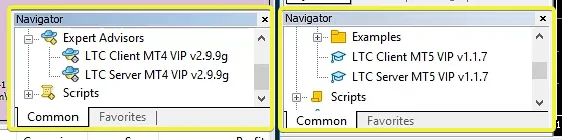
- Apply the MetaTrader 4 copier installer for all MT4 platforms
- Apply the MetaTrader 5 copier installer for all MT5 platforms
- Place the Server EA on master accounts
- Place the Client EA on client accounts
The package provides these as separate files directly accessible—don’t miss them.
Tips:
- Store the installation package in a readily accessible location
- Check the documentation folder prior to beginning installation
- Refer to the installation video for step-by-step visual guidance when necessary
- Remember: Server EA = Master Account, Client EA = Slave Account
Setting Up Master Account (Server EA)
The master account serves as your trade execution point. This account handles your active trading, and with all other accounts mirroring its actions.
Installation Steps
- Open Any Currency Pair – It doesn’t impact which pair you choose. USD/CHF functions well, but any pair will do.
- Attach Server EA – Drag and drop the Server EA onto the chart
- Use Default Settings – For basic setups, you don’t need to change anything. Just click OK and let it load with default settings.
You decide which account acts as master and which acts as client—you’re the manager of these platforms. The software doesn’t dictate this; you make the choice based on your trading strategy.
Tips:
- Start with default settings unless specific requirements exist
- The currency pair you attach the EA to doesn’t impact which pairs get copied
- Confirm “Allow Algo Trading” is enabled in MetaTrader (button in the toolbar)
Setting Up Client Accounts (Client EA)
Client accounts automatically replicate every trade from the master account. Setup is nearly identical to the master account.
Installation Steps
- Open Any Currency Pair – Once again, the particular pair doesn’t impact. Euro/Dollar works effectively.
- Attach Client EA – Drag and drop the Client EA onto the chart
- Verify Settings – You’ll see many configuration options, but for basic setups, default settings work perfectly
Don’t feel overwhelmed by the number of settings. You don’t need to adjust anything for most cases, especially when starting out. Advanced settings become necessary only for specific requirements.
Money Management Modes
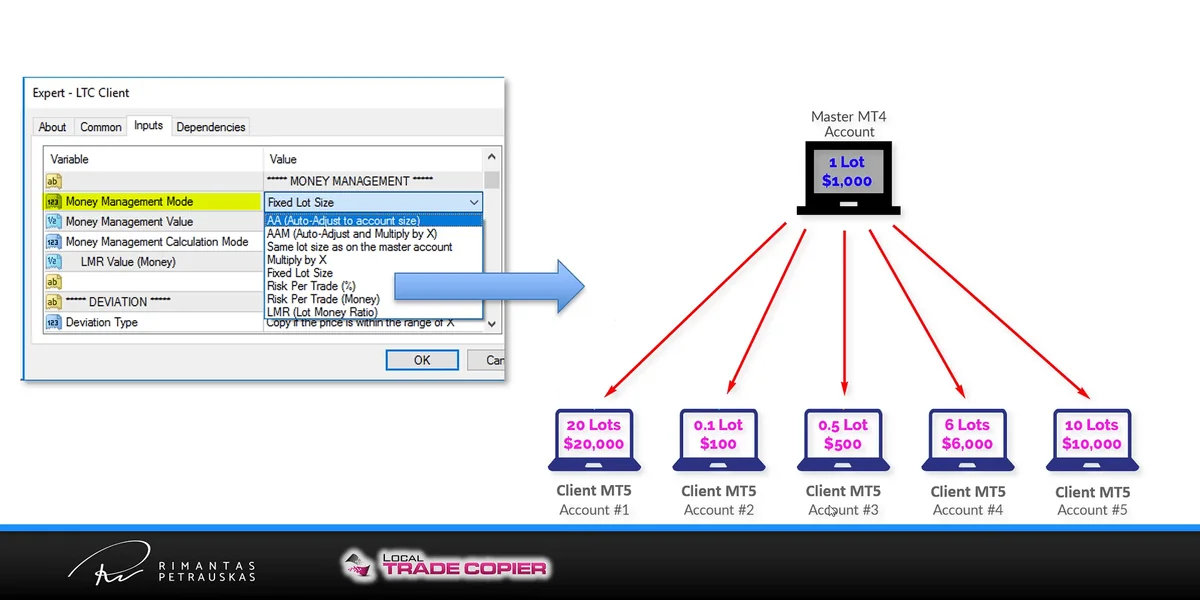
Each client account can use its own lot size rules. You choose them with the Money Management Mode input of the Client EA, which has eight options:
- AA (Auto-Adjust to account size) (default): scales the lot size by the ratio between the client and master account size, so both accounts take the same percentage risk.
- AAM (Auto-Adjust and Multiply by X): works like AA, then multiplies the result by the Money Management Value (for example 0.5 for half the risk).
- Same lot size as on the master account: copies the exact master lot size, whatever the account sizes.
- Multiply by X: multiplies the master lot size by the Money Management Value, ignoring account size.
- Fixed Lot Size: opens every copied trade with the lot size set in the Money Management Value.
- Risk Per Trade (%): sizes each trade so that hitting the stop loss loses the set percentage of the client account.
- Risk Per Trade (Money): sizes each trade so that hitting the stop loss loses the set amount of money in the account currency.
- LMR (Lot Money Ratio): trades a set lot size for every set amount of money, for example 0.2 lots per $1,000 (uses the LMR Value input).
Both Risk Per Trade modes need a stop loss on the master trade. If the master trade has no stop loss, the Client EA uses AAM for that trade.
The Money Management Calculation Mode input chooses whether the Client EA compares the accounts by balance or by equity.
Auto-Adjust (AA) Example
With the default AA mode, if your master account is $10,000 trading 1 lot and your client account is $20,000, the Client EA opens 2 lots, because the client account is twice the size. If the client account is $1,000 (10 times smaller), it opens 0.1 lots (1 mini lot).
Tips:
- The default AA mode is the safest option for most traders
- Applying the same lot size on accounts of different sizes can be risky—make sure you understand the implications
- Money management settings are covered in depth in separate training materials
Custom Symbol Mapping for Mismatched Names
This section is crucial when copying between MT4 and MT5, especially for non-Forex pairs like CFDs, indices, and stocks.
Why Symbol Names Differ
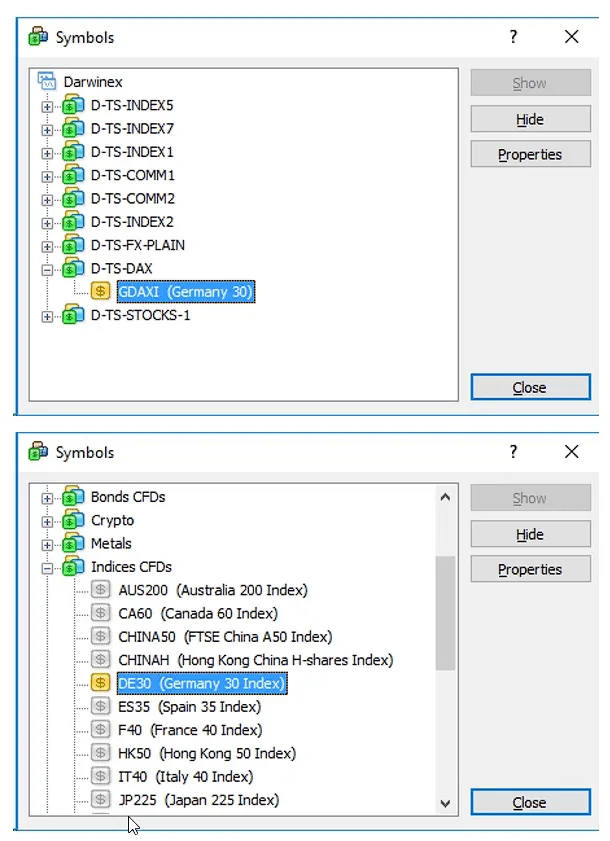
Brokers apply different naming conventions for the same instruments. For instance, the Germany 40 index (formerly DAX 30) might appear as:
- GDAXI on one broker
- DE30 on another broker
- GER30 elsewhere
When the Client EA receives a trade for “GDAXI” but only finds “DE30” in its symbol list, it cannot recognize them as the same instrument. It rejects the trade stating it cannot locate that symbol.
This occurs because the Client EA doesn’t automatically recognize that GDAXy equals DE30, or whether it represents Gold, Bitcoin, or Euro/Dollar. You must explicitly specify this through custom symbol mapping.
Setting Up Symbol Mapping
The custom symbol mapping parameter instructs the Client EA on symbol name translation symbol names. The format follows:
MasterSymbolName=ClientSymbolName
Real-World Examples:
- Gold: XAUUSD=GOLD
- S&P 500: SP500=US500
- DAX: GDAXI=DE30
Contract size multipliers can be included when necessary (though this represents advanced usage):
- GDAXI=DE30=0.1
Practical Application: S&P 500 Symbol Mapping
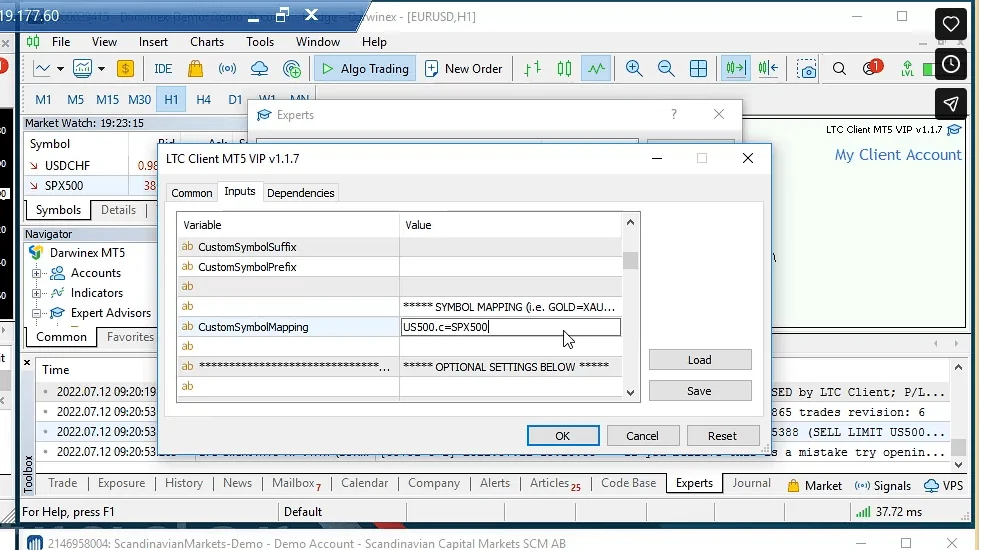
Consider a scenario where the master account lists the S&P 500 listed as “US500.c” while the client account displays it as “SP500” (in brackets). Here’s the resolution process:
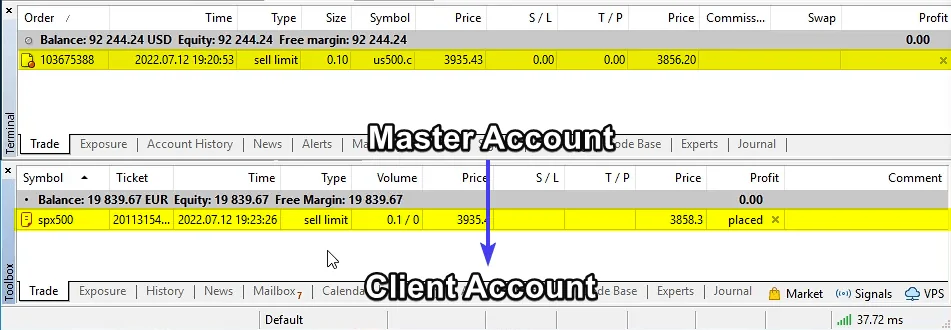
- Open the Client EA properties
- Scroll down to locate the “Custom Symbol Mapping” parameter
- Enter: US500.c=SP500
- Click OK
Right after configuring the mapping, the pending trade copies successfully. From that moment forward, any trade changes (modifications or deletions) synchronize automatically. Once custom symbol mapping is set up, no further changes are needed—it operates permanently with those settings.
Bitcoin Example
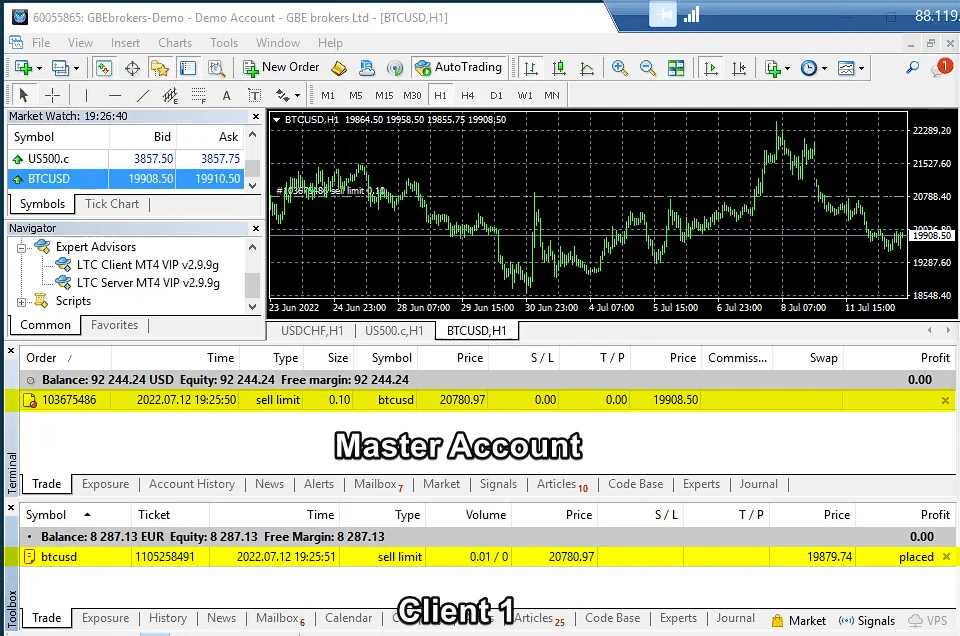
Testing with Bitcoin (BTC/USD) demonstrates an interesting scenario:
- One client account (Admiral Markets) contains “BTCUSD” and immediately copies the trade
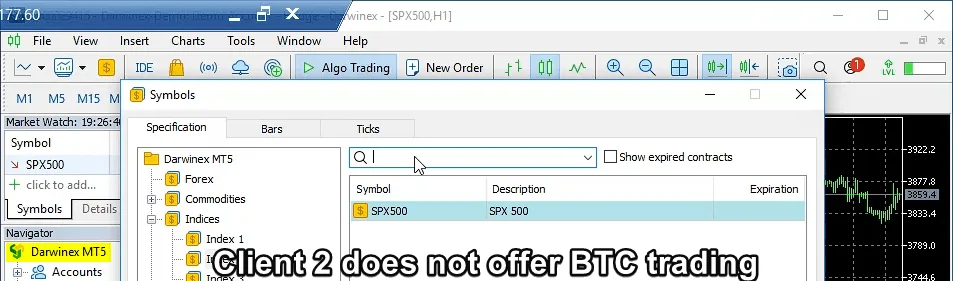
- Another client account lacks Bitcoin availability entirely, so it disregards the trade
When a symbol doesn’t exist on a client account, the EA skips that trade. This behavior isn’t an error—it’s functioning as designed.
Important Considerations
For Forex pairs such as EUR/USD, GBP/USD, or USD/JPY, symbol names typically match identically across brokers. Custom symbol mapping won’t be required 95% of the time with major Forex pairs—everything occurs automatically.
However, for CFDs, indices, stocks, and exotic instruments, symbol mapping gains importance when copying between MT4 and MT5.
Tips:
- Document symbol names from both master and client accounts prior to configuration
- Test each instrument you intend to trade using pending orders (addressed in next section)
- When contract sizes vary between brokers, the Client EA typically detects this automatically
- Maintain a reference document with your symbol mappings for future troubleshooting
Testing Trade Copying Without Risk
This is termed the “pending order copy test” and should be conducted on each instrument you intend to trade. It represents the safest method to confirm your setup works correctly without exposing real money to risk.
The Pending Order Method
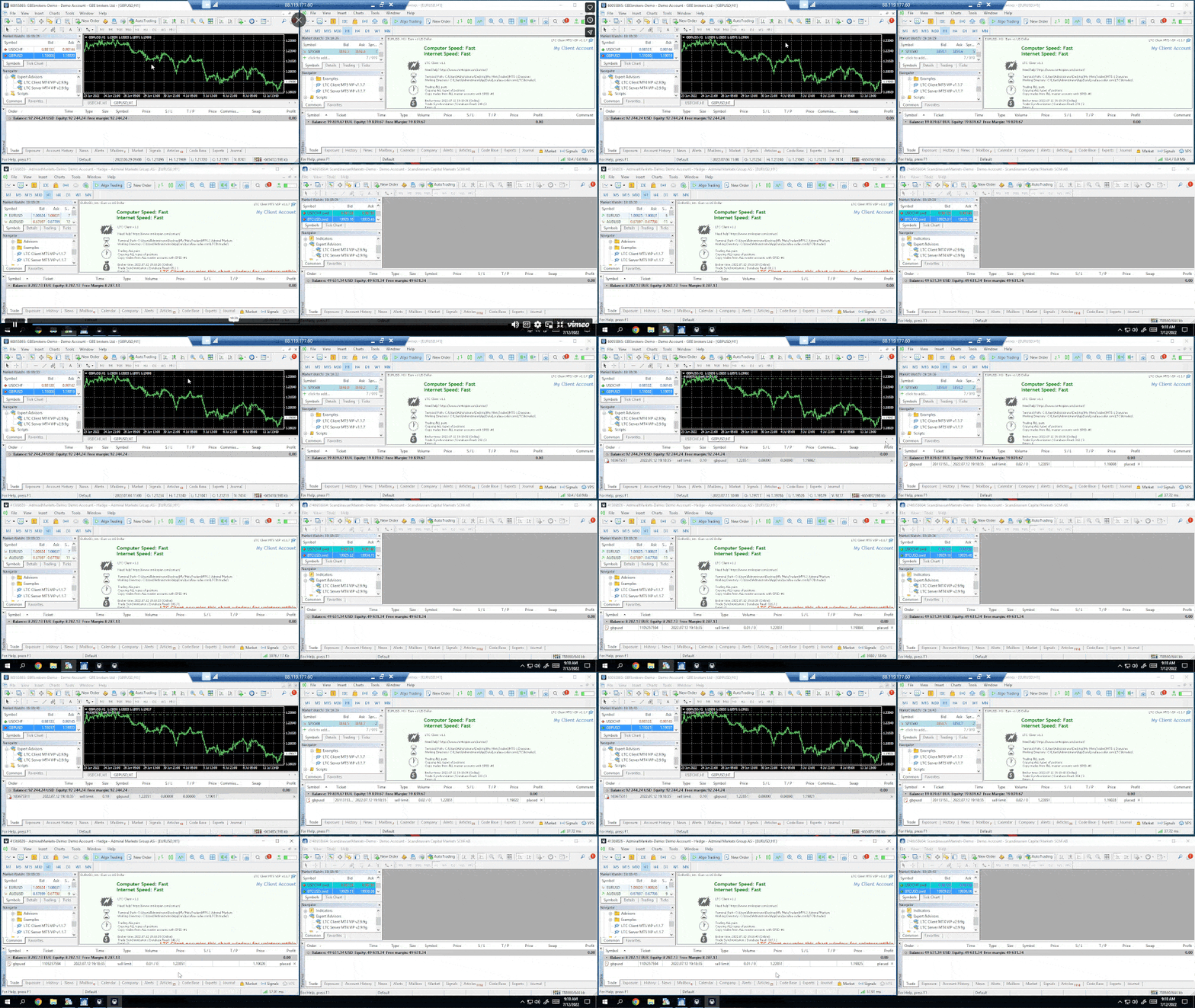
Rather than opening live market orders, you place pending orders (sell limit or buy stop orders) distant from the current price. These orders won’t trigger immediately, providing time to confirm they copied correctly.
Testing Process:
- Open the chart for the pair you wish to test (e.g., GBP/USD)
- Place a sell limit order significantly above the current price
- Confirm that both client accounts opened the identical sell limit order at the same price
- Check thentirely details match: price, lot size, order type
- Modify the pending order on the master account
- Confirm the modifications replicate to client accounts
- Delete the pending order on the master account
- Confirm deletion synchronized to all client accounts
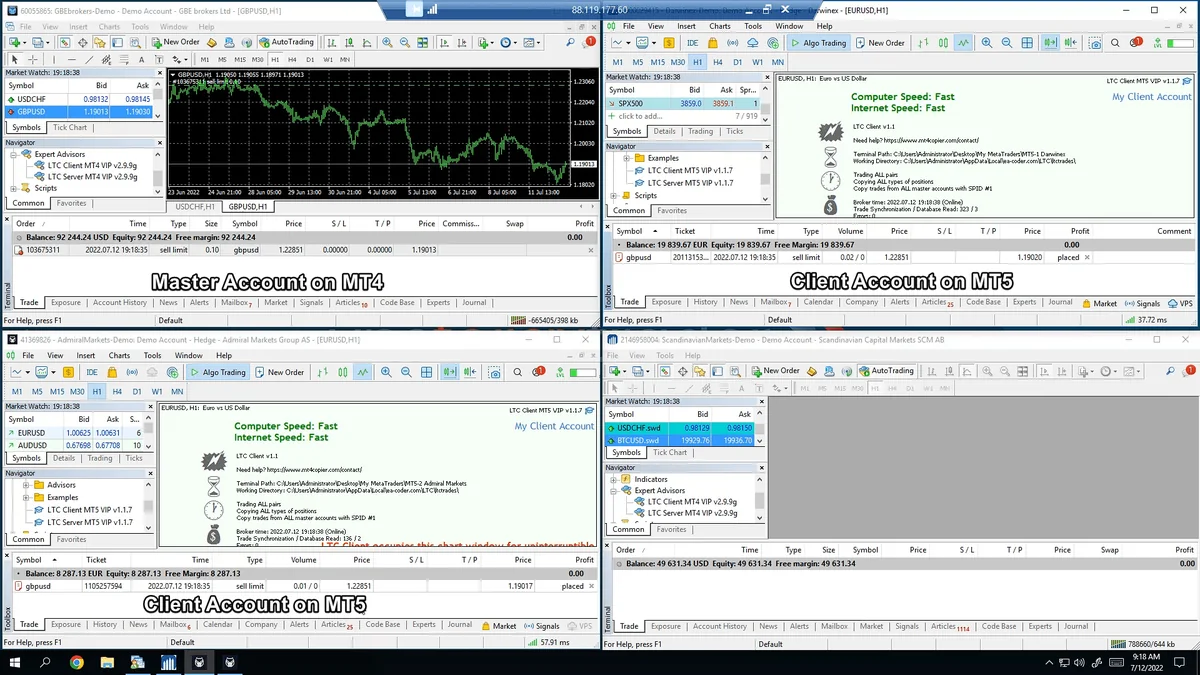
When a sell limit order appears on the master, both client accounts should instantly display the same order. Opening the pound/dollar charts on the client accounts makes this visually clear—all three platforms should show identical pending orders.
Real-Time Synchronization
Modifying the pending order on the master (change price, stop loss, or take profit), should result in instant reflection on all client accounts. Similarly, deleting the pending order on the master should immediately remove it from all clients.
This verifies:
- The connection between master and clients operates correctly
- Symbol names are accurate (or properly mapped)
- Lot size calculations function as configured
- Order modifications synchronize correctly
- Order deletions synchronize correctly
Tips:
- Always employ pending orders for testing, never market orders
- Position pending orders far from current price to prevent accidental execution
- Test every instrument you intend to trade prior to going live
- Test modifications and deletions, not solely order placement
- If a symbol doesn’t copy, verify your custom symbol mapping
Advanced Filtering and Grouping
After establishing basic copying functionality, you might desire more control over which accounts copy from which masters, or which symbols get copied.
Copy by Account Number Filtering
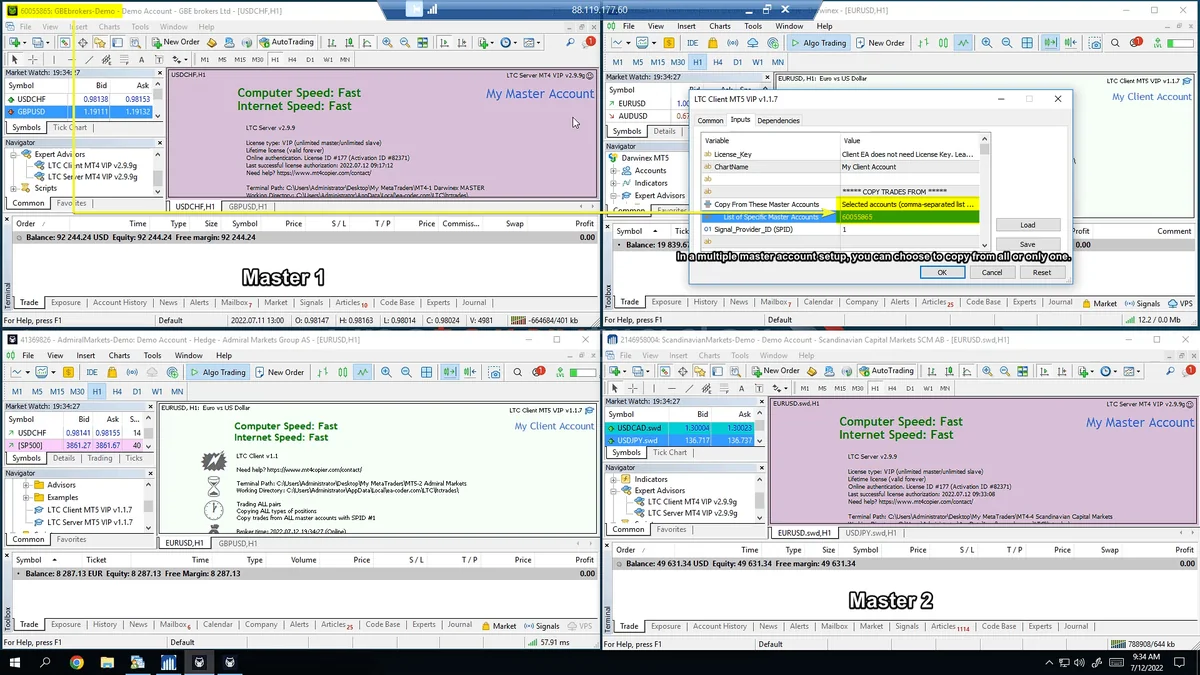
You can limit a client account to copy exclusively from specific master accounts by utilizing the “Copy from selected accounts” option.
Here’s an example with two master accounts:
- Master 1: Account number 60055865
- Master 2: Account number 214695804
Configuration:
- Open Client EA properties on the first client account
- Change from “Copy from all accounts with active Server EA on this PC” to “Copy from selected accounts”
- Enter the master account number: 60055865
- Click OK
Repeat for the second client, but specify the second master’s account number: 214695804
Testing the Setup:
- Opening a GBP/USD pending order on Master 1 → Only Client 1 copies it
- Opening a EUR/USD pending order on Master 2 → Only Client 2 copies it
Each client now exclusively copies from its designated master, disregarding trades from the other master. This proves useful when you want different trading strategies on different master accounts, each feeding specific client accounts.
Signal Provider ID Groups
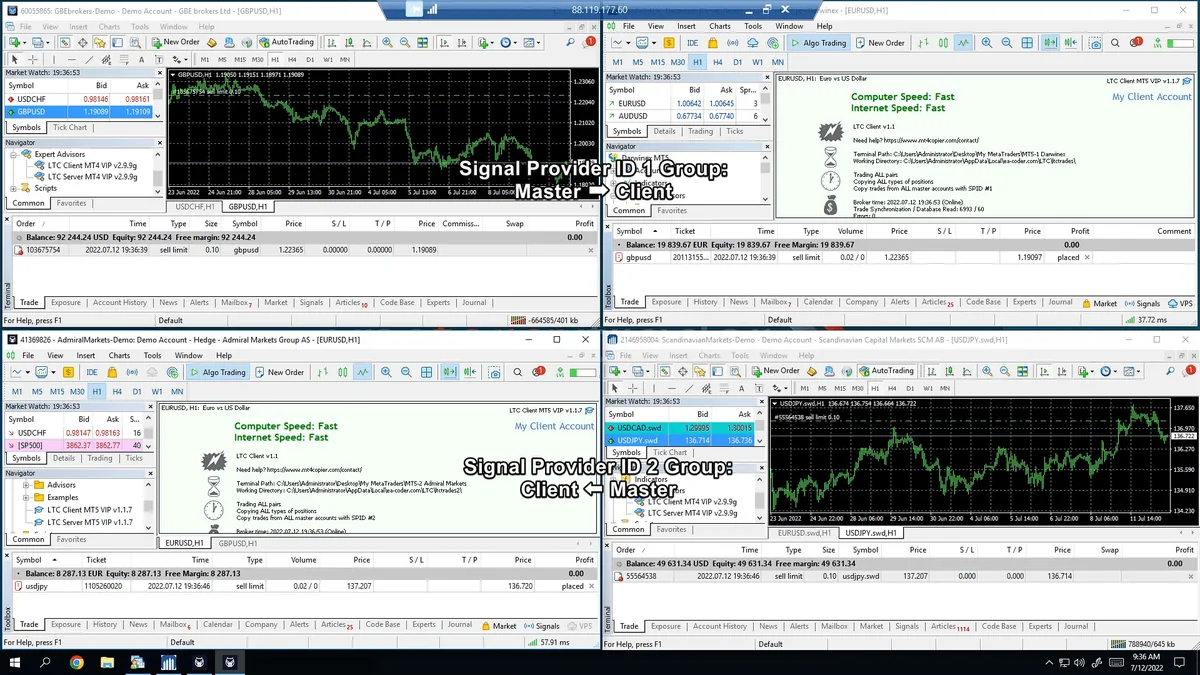
Another method to control copying is using Signal Provider ID groups. This approach offers simplicity and more flexibility than account number filtering.
How Groups Work
Every Server EA and Client EA contains a “Signal Provider ID” parameter. By default, it’s configured to “1”, meaning they all belong to Group 1. EAs only communicate with other EAs in the same group. If the IDs don’t match, they won’t see each other—they’re essentially in different groups.
Default Configuration:
- Master 1: Signal Provider ID = 1
- Master 2: Signal Provider ID = 1
- Client 1: Signal Provider ID = 1
- Client 2: Signal Provider ID = 1
All four EAs belong to Group 1, so both clients copy from both masters.
Creating Separate Groups
To establish isolated copying relationships:
- Change Master 2’s Signal Provider ID to “2”
- Change Client 2’s Signal Provider ID to “2”
- Keep Master 1 and Client 1 on Signal Provider ID “1”
Result:
- Master 1 (Group 1) → Client 1 (Group 1)
- Master 2 (Group 2) → Client 2 (Group 2)
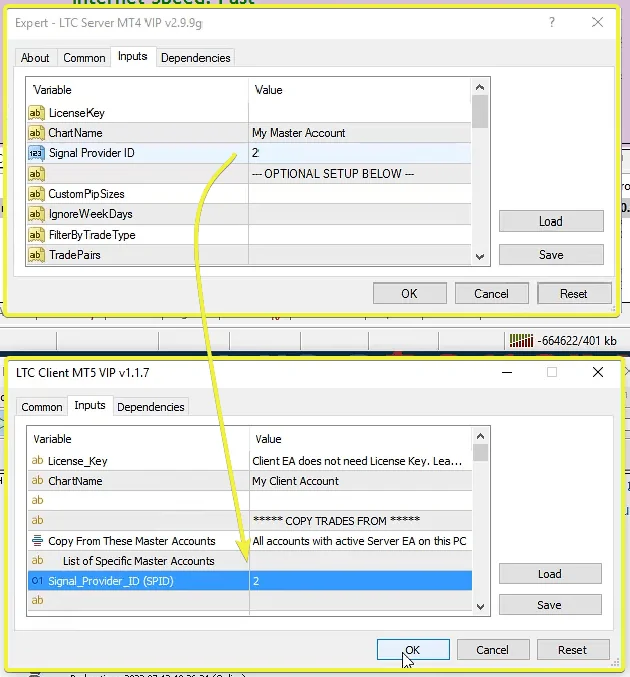
Now, trades on Master 1 copy only to Client 1 because they share the same group. Trades on Master 2 copy only to Client 2. The groups operate completely isolated.
What Happens With Mismatched Groups
Consider what occurs when you move a client to a different group. After moving Client 2 from Group 2 to Group 1:
- Three EAs in Group 1: Master 1, Client 1, Client 2
- One EA in Group 2: Master 2 (alone)
Testing:
- Opening trades on Master 1 → Both Client 1 and Client 2 copy (all in Group 1)
- Opening trades on Master 2 → No clients copy (Master 2 is alone in Group 2)
Master 2’s Server EA is essentially “left alone” with no one listening in Group 2.
Tips:
- Account number filtering offers more precision but requires knowing exact account numbers
- Signal Provider ID groups offer easier management and greater flexibility
- Groups can separate different trading strategies
- Groups prove particularly useful when managing numerous accounts
- Avoid changing groups while trades are open—close all positions first
Bidirectional Copying (MT5 to MT4)
Everything discussed previously works in reverse. You can copy from MT5 to MT4 just as easily as from MT4 to MT5.
Quick Reversal Process
Here’s how to reverse the master-client relationship:
- Set MT5 as Master – Attach Server EA to the MT5 platform
- Set MT4 as Client – Attach Client EA to the MT4 platform
Now trades flow from MT5 → MT4 instead of MT4 → MT5.
Troubleshooting: Wrong Symbol Suffix
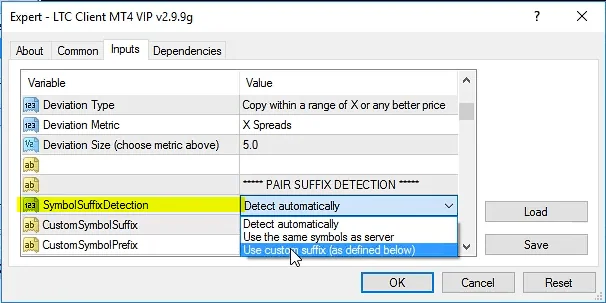
Some brokers list the same instrument under several names with different suffixes (like “.f” or “.raw”), or accept trades only on symbols without a suffix. If the Client EA picks the wrong one, change its Symbol Mapping Mode input. It has three options:
- Automatic – detect from Client EA chart (default): uses the prefix or suffix of the chart the Client EA is attached to. Attach it to EURUSD.f to trade “.f” symbols, or to EURUSD to trade symbols without a suffix.
- Exact – use same symbol as Server: uses exactly the same symbol names as the master account. Best when both accounts are with the same broker.
- Custom – use prefix/suffix below: uses the values you enter in CustomSymbolSuffix and CustomSymbolPrefix. Leave both empty to trade symbols without a suffix or prefix.
The fix:
- Open the Client EA properties (F7)
- Set Symbol Mapping Mode to “Custom – use prefix/suffix below” and enter the correct suffix in CustomSymbolSuffix (or leave it empty)
- Click OK. The trades should start copying correctly right away
Note: the screenshot above comes from an older EA version (2.9.9). There this input was called SymbolSuffixDetection, and its options were “Detect automatically”, “Use the same symbols as server” and “Use custom suffix (as defined below)”. They match the three current options in the same order.
This illustrates that sometimes broker-specific peculiarities require minor adjustments. The software typically detects these automatically, but manual overrides remain available when necessary.
Multiple Masters Simultaneously
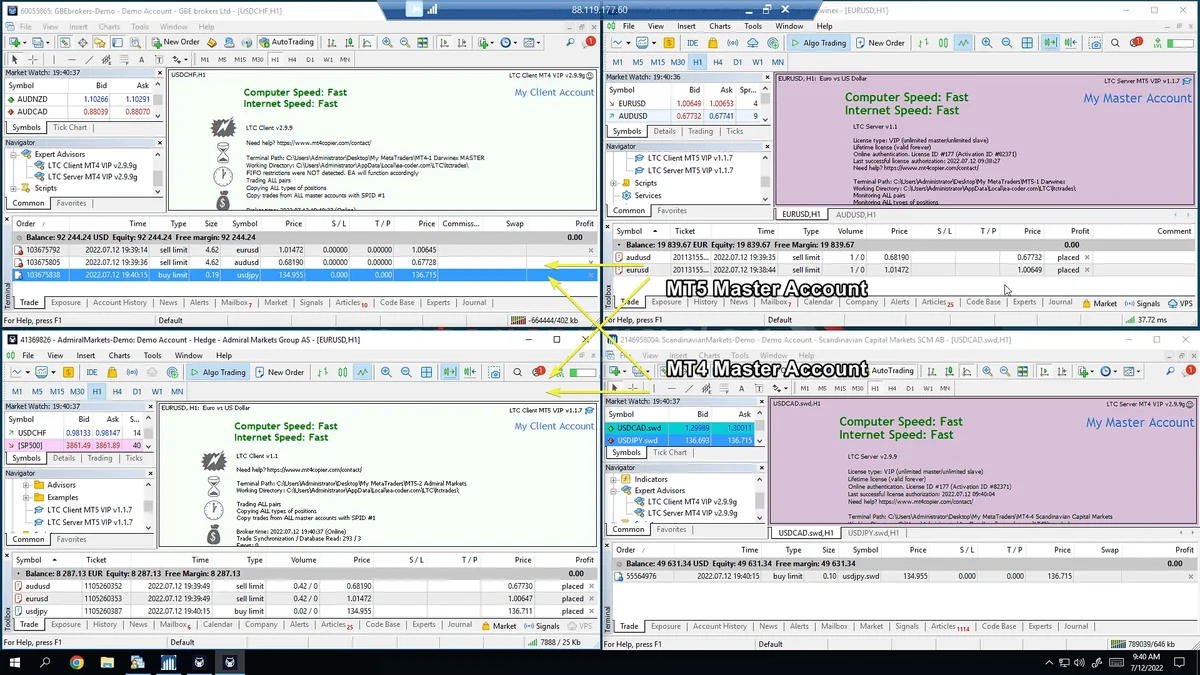
You can operate multiple masters at the same time, regardless of platform:
Possible Setup:
- MT5 acting as Master
- MT4 acting as Master
- MT4 acting as Client
- MT5 acting as Client
When opening a USD/JPY trade, both clients (MT4 and MT5) would copy the trade regardless of which master it originated from. The system could have:
- MetaTrader 4 Master
- MetaTrader 5 Master
- Both copying to MT4 Client and MT5 Client
You can configure it to operate in both directions—however you prefer. The process becomes easy and straightforward once you grasp the basic principles.
Tips:
- Always verify symbol names when reversing the setup direction
- Watch for broker-specific symbol suffixes or prefixes
- Test with pending orders after making directional changes
- Multiple simultaneous masters require careful account number or group management
Frequently Asked Questions
Several common questions arise when setting up trade copying between MT4 and MT5:
Q: Do I need different computers for each account?
A: No, all accounts run on the same computer, just on different MetaTrader platform instances.
Q: Can I use the same lot size on all accounts?
A: Yes, but it’s risky if account sizes differ. The default AA (Auto-Adjust) mode is safer.
Q: Will Forex pairs need symbol mapping?
A: 95% of the time, major Forex pairs have identical names across brokers and won’t need mapping.
Q: What if my broker doesn’t have a symbol that the master is trading?
A: The Client EA will simply ignore trades for symbols that don’t exist on the client account.
Q: Can I copy from multiple masters at once?
A: Yes, either by utilizing the same Signal Provider ID group or by not restricting account numbers.
Q: Does this work with hedging and netting accounts?
A: Refer to separate documentation for hedging vs. netting account copying considerations.
Wrapping Up
Copying trades from MetaTrader 4 to MetaTrader 5 (or vice versa) is fundamentally no different from copying within the same platform. The key requirements are:
- Install the correct version of Local Trade Copier (MT4 or MT5) on each platform
- Set up Server EA on master accounts and Client EA on client accounts
- Configure custom symbol mapping when symbol names differ
- Test everything with pending orders prior to going live
- Use account filtering or Signal Provider ID groups for advanced setups
The process is straightforward once you grasp these core principles. With proper testing and configuration, you can reliably copy trades across any combination of MetaTrader 4 and MetaTrader 5 platforms.
Next Steps:
- Install Local Trade Copier on your platforms
- Start with a simple one-master, one-client setup
- Test with pending orders on each instrument
- Gradually add more client accounts as you become comfortable
- Explore advanced features like filtering and grouping once basics are mastered